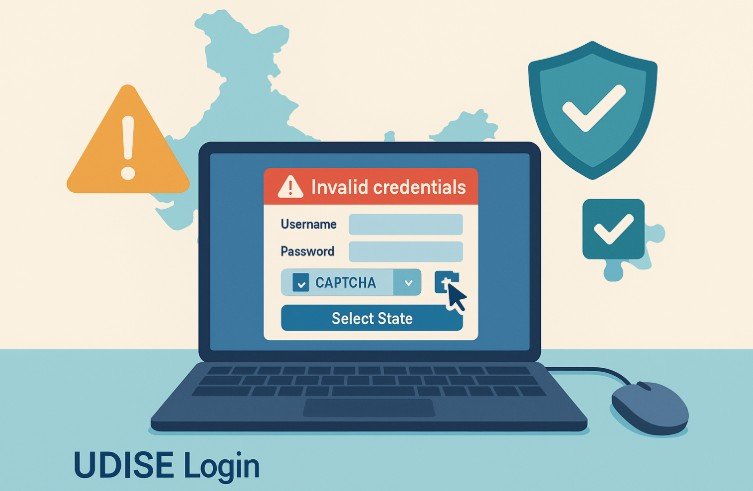
School Profile & Facility module in UDISE+ is where schools keep their official profile current—location, management, infrastructure, ICT, and more. It sits under the main UDISE+ portal and uses your school’s 11-digit UDISE code as the username; the password is issued by your Block MIS.
You’ll need: your 11-digit UDISE code (username) and working password. If you still have a 10-digit code from older lists, add a leading 0 when logging in (common guidance on the portal).
Where to log in
- Main portal: Open udiseplus.gov.in and use the Login entry point; from there you’ll see modules, including School Profile & Facilities Management.
- Direct profile module page: You can also land on the Profile module login screen directly.
Step-by-step UDISE+ School Profile & Facility Login
Step 1 — Open the module
Go to the UDISE+ home and proceed to Profile & Facility (School Profile & Facilities). You may also use the direct Profile login page if you have it bookmarked or visit https://udiseplus.gov.in/moe_udise/#/login

Step 2 — Enter credentials
On the School Profile module login screen, enter:
- Username: your school’s UDISE code (11 digits)
- Password: the one issued by Block MIS
Fill the captcha, then Login.
Step 3 — Land on Profile & Facility dashboard
After login, you’ll see the Profile & Facility areas. Typical sections include School Profile, Physical Facilities & Equipment, and ICT/Digital Initiatives (names can vary slightly by release).
Download Full User Manual for Profile & Facility Module
What you can update On UDISE+ Portal
➤ School profile: location, structure, management, medium of instruction.
➤ Facilities & equipment: building, classrooms, ramps, labs, libraries, toilets, drinking water, electricity.
➤➤ ICT & digital initiatives: computers, smart classrooms, internet availability.
Tip: Keep documents handy (recognition, affiliation, utility bills, etc.) so you can verify entries state authorities may audit later.
Forgot password or can’t log in?
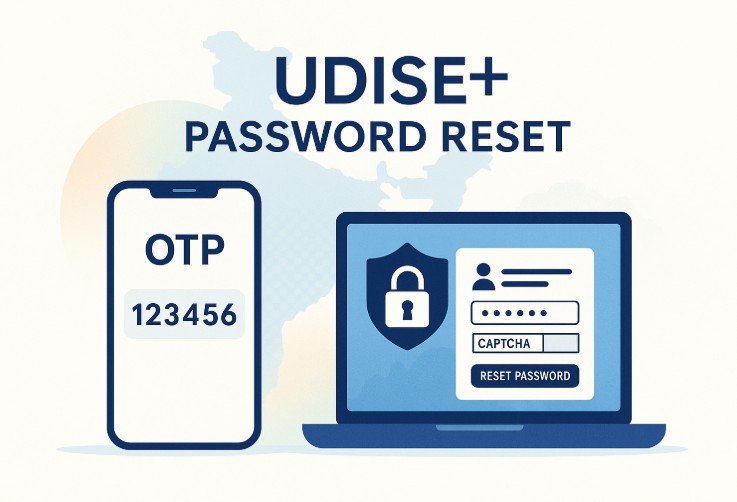
Password source: The portal notes that the UDISE code is the username and the password is provided by Block MIS. If you can’t log in, contact your Block/District MIS to reset.
UD module reset: The School Directory & User Management (UD) login has a Forgot Password link; many users recover access through this route.
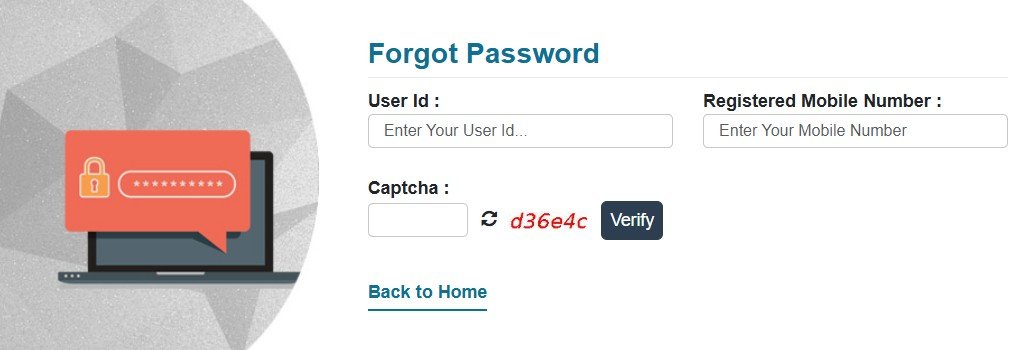
Captcha/invalid credentials: Re-load the captcha; confirm you’re using 11 digits for the UDISE code and the correct academic year page. If you jumped in from an old bookmark, start from the main portal again
Common mistakes and quick fixes
- Using 10-digit username: Add a leading 0—your username must be the 11-digit UDISE code.
- Wrong module: If you’re trying to edit profile details, make sure you’re in Profile & Facility, not Teacher or SDMS Student. Start from the main portal and pick the correct tile.
- Old bookmark: The portal URLs change across cycles—if a link 404s, go via the root site and re-enter the module
Verify your school details without logging in
If you’re just cross-checking public info, use Know Your School (KYS)—search by name, UDISE code or PIN. It’s public (no login).
FAQ
It’s the section where schools update official details – School profile, infrastructure, ICT assets, utilities, and related facility information used for state/national reporting.
In most cases it’s your 11-digit UDISE code. The password is issued by your Block/District MIS (change it after first login).
Add a leading 0 to make it 11 digits (e.g., 01234567890) and try again.
Yes, use KYS (Know Your School) to view public-facing details by school name, UDISE code, or PIN. It’s read-only and doesn’t require a login.